File Library
Put project files in the file library. AI reads them in full and does the work.
Put project specs, quotes and drafts in the file library. MaiGPT reads whole files before it writes, summarizes or rewrites, and shows which document each fact came from. It edits a file only after you confirm, and every change is recorded so you can restore it. Chat attachments and AI output are filed automatically.
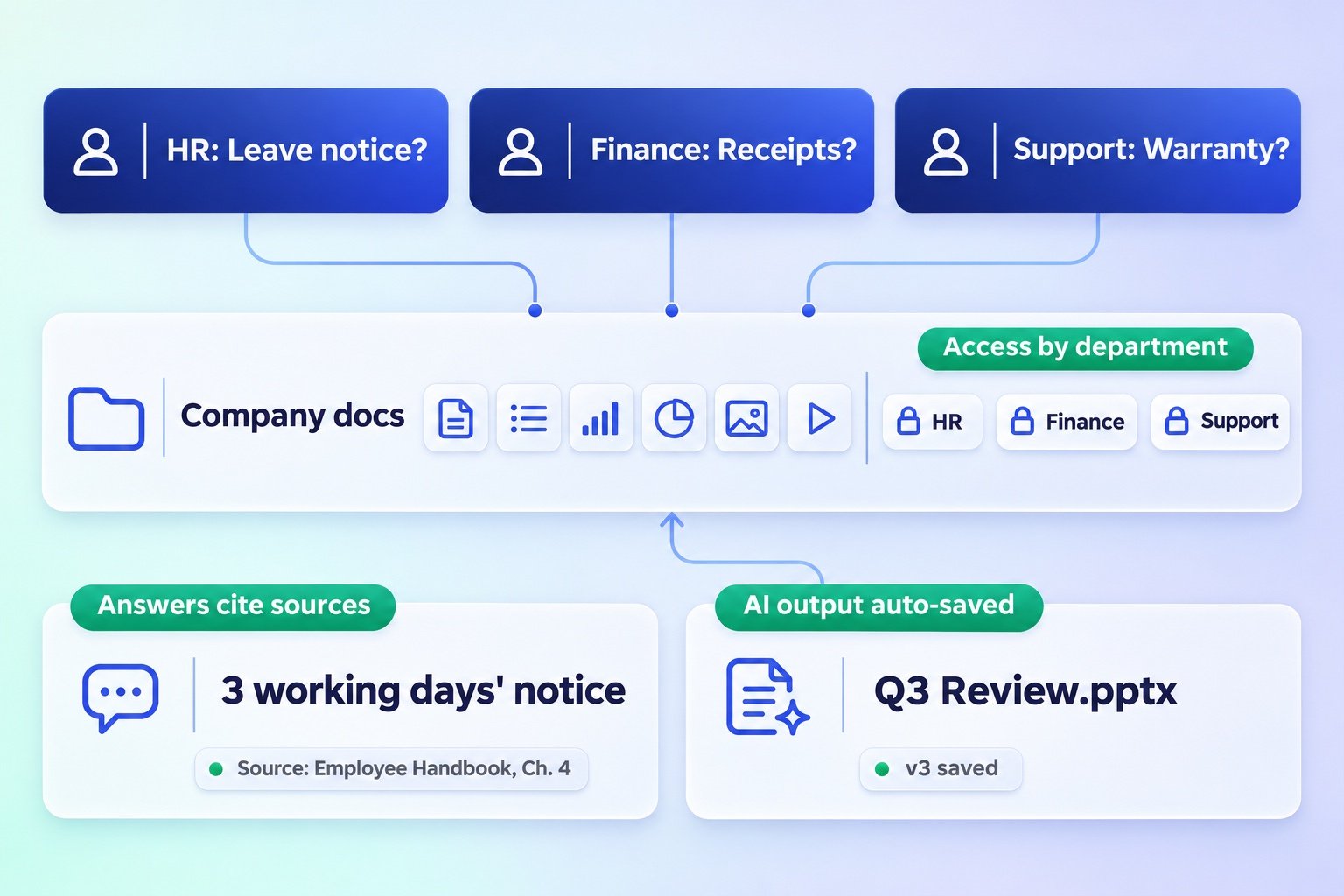
- Answers show sourcesEach fact shows which document it came from
- AI reads whole filesWrite, summarize and compare documents
- Confirm before editsAI lists the changes and saves only after you agree
- Restore any versionThe last 20 versions of each file are kept
What the File Library can do
Put project files in a workspace, and AI reads them in full
Create a file workspace for each project, customer or topic. Click “Start a chat here” and MaiGPT finds the files it needs, reads them in full, then answers and shows which document each fact came from.
- No need to upload files one by one. AI finds the right files for each question
- The system writes a workspace guide that explains what is inside and how to use it
- When a file name is unclear, AI asks you which one you mean
Add files and whole folders, and connect your NAS and web crawler
Pick files or a whole folder and they upload in the background, with subfolders kept as they are, while you keep working. Folders on your company NAS or cloud drive can sync into the file library on a schedule, and pages collected by the web crawler can be saved straight into a workspace.
- Pause and resume uploads. After a dropped connection, uploading picks up where it stopped, with no need to pick files again
- Organization owners set up external sources and their sync schedule. Synced folders are read-only
- Each web crawler run saves its results as a new folder in the workspace
Ask AI to edit files, and it saves only after you confirm
AI can do more than read. It can edit content, rename files in bulk, and move or delete them. Every change is listed first and runs only after you confirm. If a colleague has already saved a newer version, AI will not overwrite it.
- Works on Word, Excel, PowerPoint and text files
- Bulk renames and moves show a before-and-after list first, then run in one go after you confirm
- Deleting always needs confirmation, and you can restore files within 30 days
Every change is recorded, so mistakes can be undone
The workspace history records every upload, move, deletion and AI action. Each file keeps a version list of past content. Preview a version, confirm it, and restore it.
- AI actions show who confirmed them and in which chat
- Each file keeps its last 20 versions
- Restoring keeps every version in between, so you can switch back again
Chat attachments and AI output are filed automatically
Files you upload in a chat attached to a workspace go into that workspace automatically. Documents, images and videos made by AI are saved to the staging area in My Files, so you do not have to download and sort them yourself.
- A notice appears after filing, and you can undo it if it went to the wrong place
- File details show the source workspace and the chat that created it
- To file it in another workspace, just tell AI which one
Who can see and who can edit
is set by role
The file library has three kinds of space: personal, organization and shared. Permissions follow custom roles. For members with view-only access, AI reads files for them but never edits files on their behalf.
Your personal work files are visible only to you. Files made by AI go into your staging area first.
- Personal space
- Staging area
Shared material for the whole organization, such as product documents and brand assets. View and edit access are granted separately.
- View and edit set separately
- Shared company-wide
Folders used across teams are granted by role. Before creating one, preview which members will get access.
- Granted by role
- Updates when people change roles
For members with view-only access, MaiGPT still reads files for them, but does not edit files or save output.
- Reading still works
- Editing needs edit access
If you do not own the workspace, asking AI to delete a file sends a delete request. The owner approves or rejects it.
- Owner approves
- Requests expire in 7 days
The workspace history shows who confirmed each AI action and in which chat, so you can check later.
- Who confirmed
- Which chat
Start with one project
- 1Create a file workspace
One workspace for each project, customer or topic.
- 2Add the original files
Put specs, quotes and drafts in as they are, or upload a whole folder at once. Right-click a folder to upload straight into it.
- 3Start a chat here
Start a chat from the workspace and ask MaiGPT to summarize, write or edit files.
MaiAgent Work core features
 MaiGPT Chat
An enterprise AI chat platform. Get everyday work done by chatting.
Learn more Agent Marketplace
Ready-made Agents that work out of the box, for every role and industry.
Learn moreFile LibraryPut project files in. AI reads them in full and helps you write and edit.
Learn more AI Meeting Notes
Records while you meet. Summary, decisions and action items are ready after.
Learn moreFAQ
Which file formats does the file library support?
PDF, Word, PowerPoint, Excel, CSV, TXT, Markdown, JSON, HTML, common image formats, MP3, WAV, M4A, MP4 and more. Each file can be up to 500 MB, and folders can go up to 10 levels deep.
Can it connect to our NAS or cloud drive?
Yes. An organization owner adds an external source in the file library, enters the connection address and sync path, tests the connection, and sets a sync schedule. The folder then syncs into the file library regularly, and synced folders are read-only. Available connection types depend on your deployment. Contact us to confirm what fits your setup.
How many files can AI read at once?
Up to 5 files at a time. For more, ask in several steps. When you start a chat from a workspace, AI finds the files it needs for each question, so you do not have to upload them one by one.
Where do chat attachments go?
Files you upload in a chat attached to a workspace go into that workspace automatically. Documents, images and videos made by AI are saved to the staging area in My Files. You can undo filing if something went to the wrong place, and move output you want to keep from staging into a workspace.
Will AI change my files on its own?
No. Before AI edits, renames, moves or deletes a file, it lists the changes and waits for you to confirm. Each save creates a new version, so mistakes can be undone.
Can we deploy it in our own environment?
Yes. The File Library supports SaaS, cloud and on-premises deployment. Contact us to find the right option for you.